Download file
Click “Download for Windows” and save the file CN1 Fernwartung.exe. After downloading, you will find the file in the download folder. If the download does not appear, open the download list with Ctrl+J.
Only use CN1 Remote Support after direct coordination with Neumann IT Solutions. Access is granted using temporary credentials and ends when the program is closed.
Send your user ID and password exclusively to Neumann IT Solutions. Leave the Unattended Access option set to No.
Click “Download for Windows” and save the file CN1 Fernwartung.exe. After downloading, you will find the file in the download folder. If the download does not appear, open the download list with Ctrl+J.
Open the downloaded file. Confirm the Windows security prompt if it appears.
In DWAgent, select “Run”. Do not use permanent installation.
Share the displayed user ID and password with Neumann IT Solutions. These details are valid only for this session.
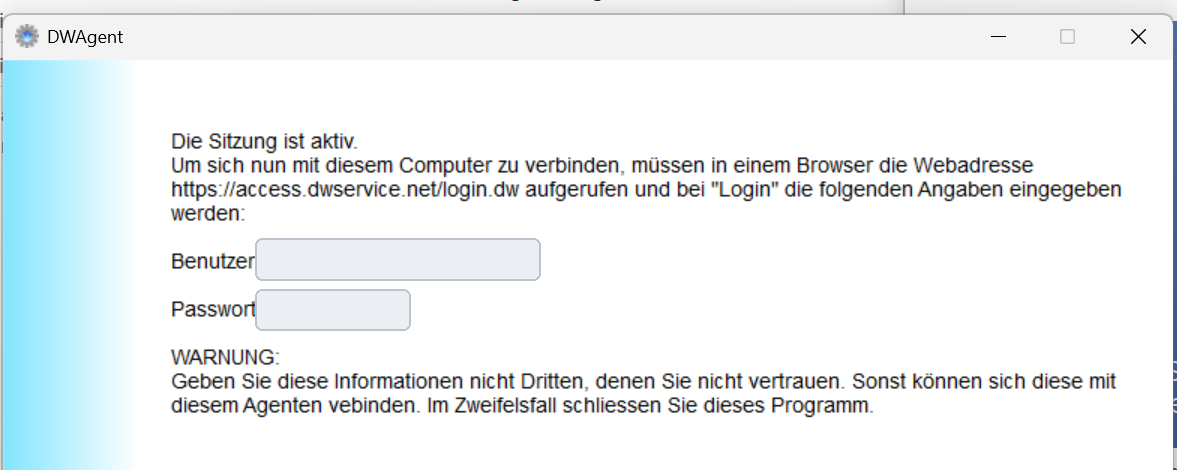
After completing remote support, click “Close” in DWAgent. This terminates the current connection and invalidates the temporary access details.
Neumann IT Solutions will not unexpectedly ask you to start remote support. Only launch the application during an agreed support session.
User ID and password may only be transmitted to Neumann IT Solutions.
You can terminate the connection at any time by closing the DWAgent window.
Remote support is technically provided via DWService / DWAgent.